
GardenerNick user guide
How to use GardenerNick
This guide follows the app as you use it: add a plant, check its condition, record care, ask Nick a question, return later to see what changed, and keep the journal ready to restore.
GardenerNick 使用指南
怎样使用 GardenerNick
这份指南按实际使用顺序来写:添加一株植物、检查状态、记录养护、问 Nick 一个问题,过一段时间回来看看哪里变了,并把这份植物日记妥善备份。
Getting started开始使用
Quick start: add your first plant in four steps
快速上手:四步添加第一株植物
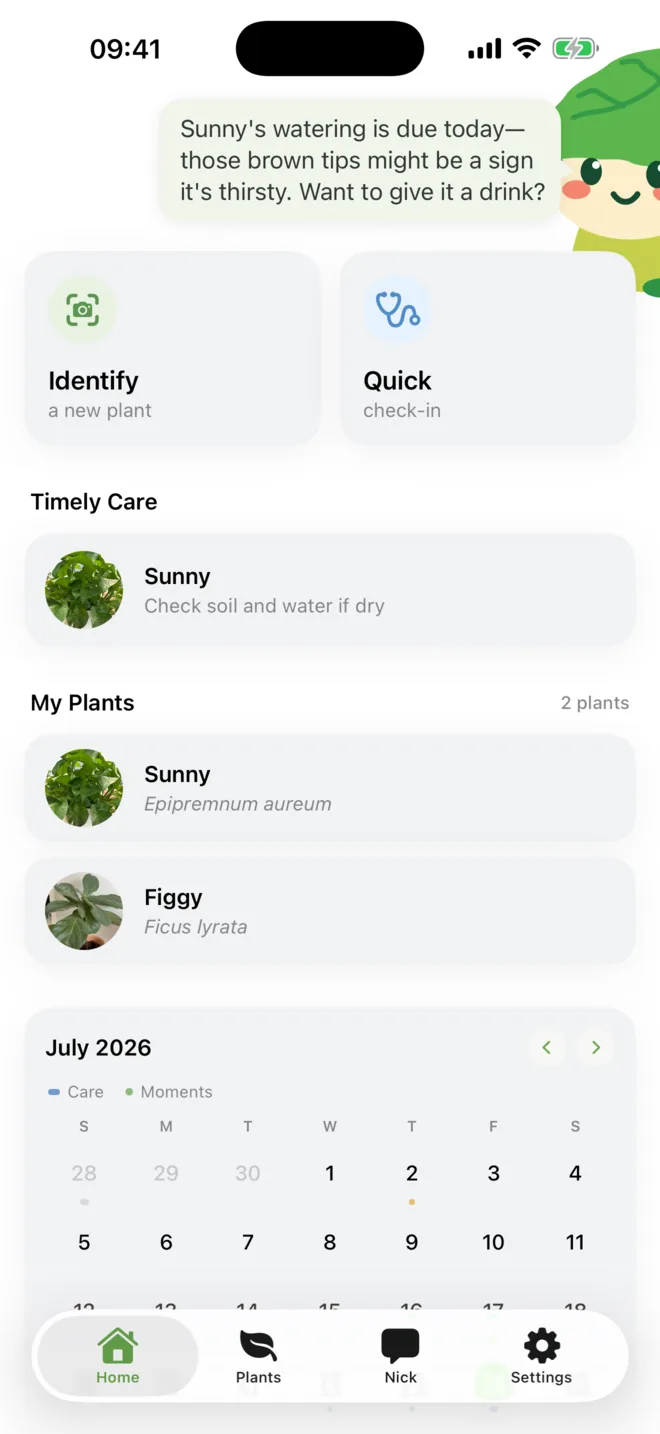
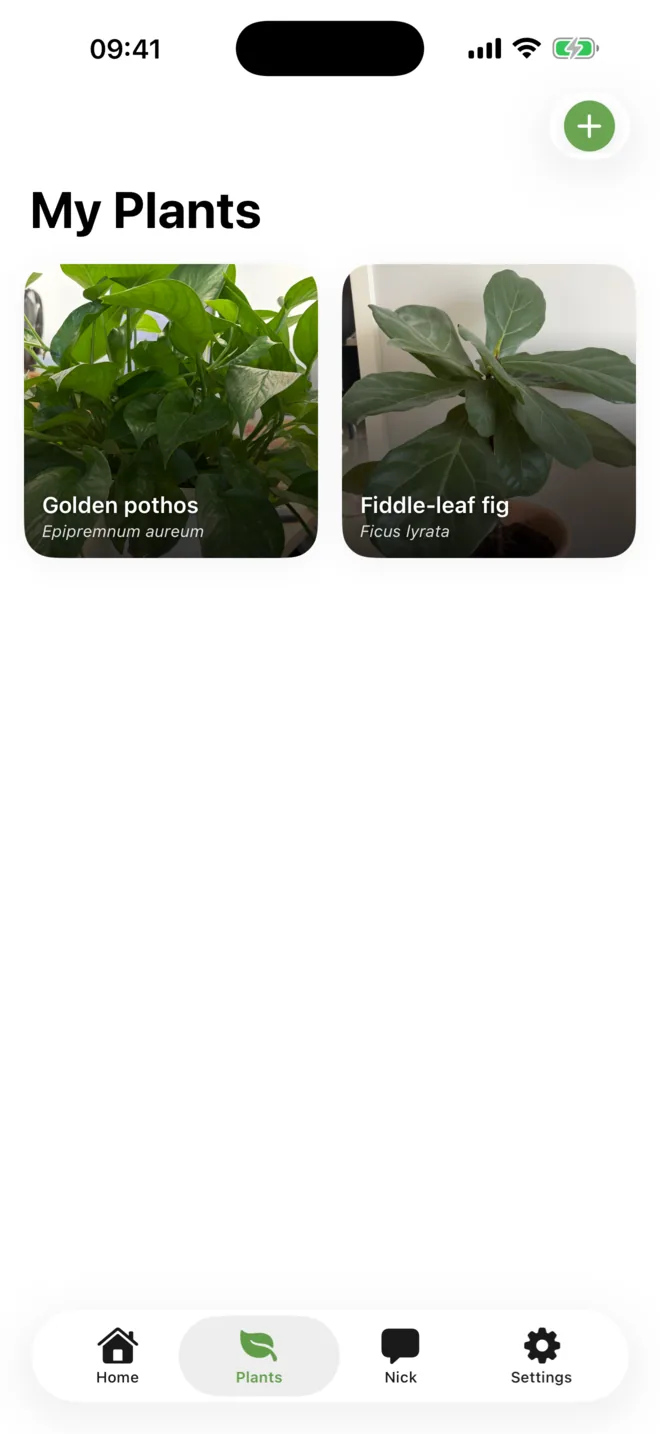
- Tap Identify on Home.You can also open Plants and use the plus button.
- Take a photo or choose one from Photos.Use a clear image that shows the leaves and overall shape.
- Check the result.Add a nickname, placement, and city, then save the plant.
- Read the first health overview.Nick saves it with the plant, so later check-ins have something to compare with.
Camera permission is requested only when you choose to take a photo. You can use an existing photo instead.
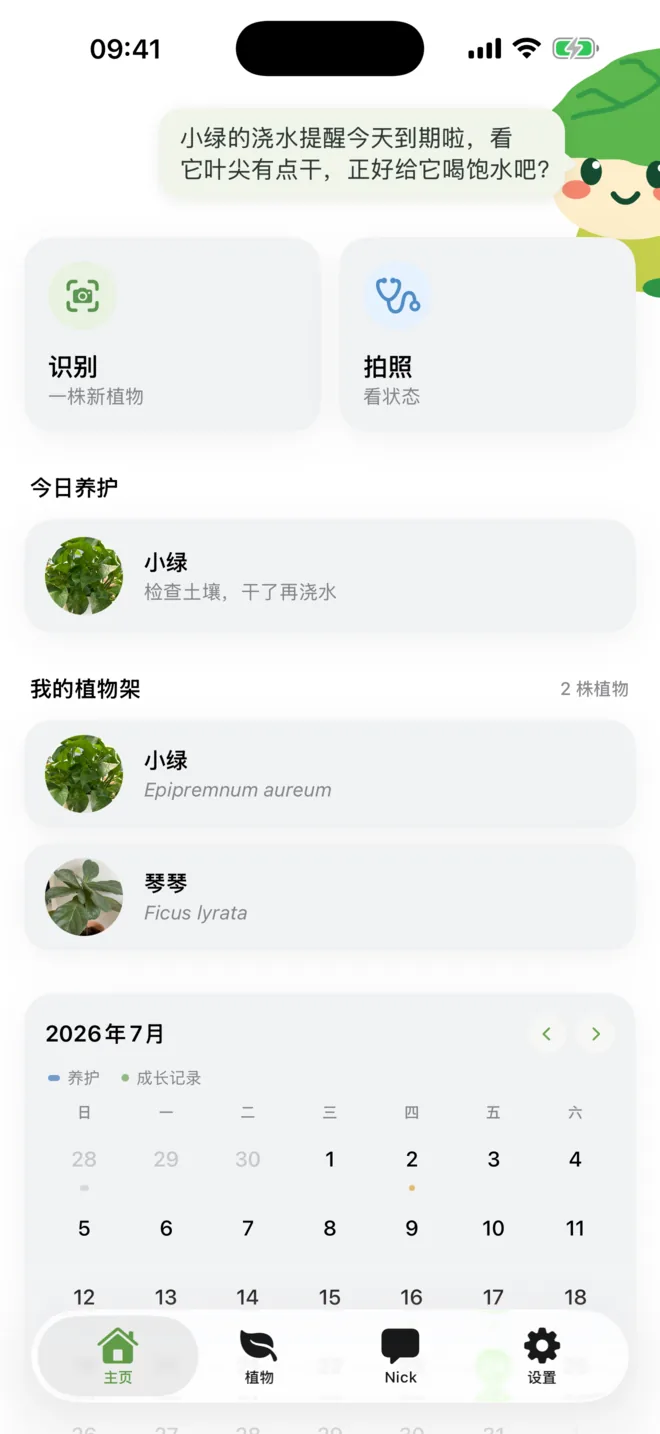
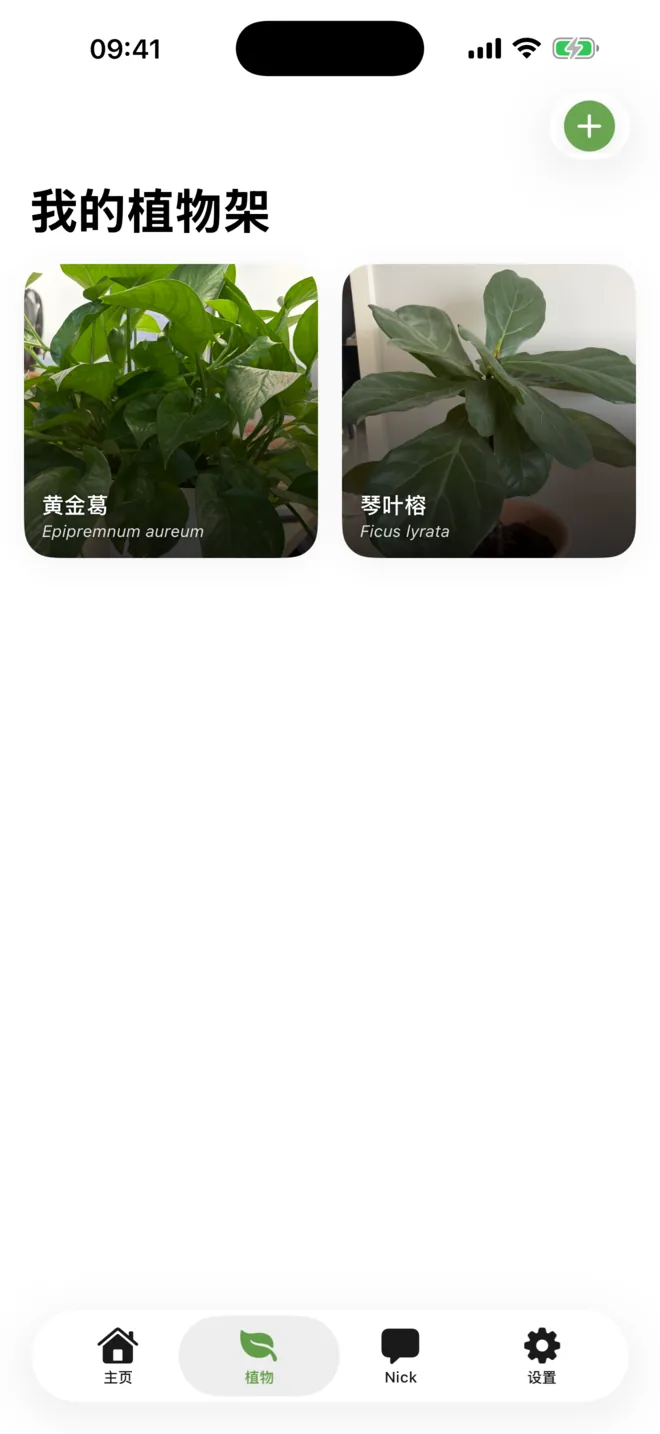
- 在首页点“识别”。也可以进入“植物”标签页,再点右上角的加号。
- 拍一张照片,或从相册选择。尽量让照片能看清叶片和整株轮廓。
- 核对识别结果。补充昵称、摆放位置和城市,然后保存。
- 查看第一次状态检查。这份结果会随植物一起保存,方便下次复查时比较。
只有在你选择拍照时,App 才会申请相机权限;也可以直接使用相册里的照片。
Plant identification植物识别
How to get a useful identification
怎样拍出更容易识别的照片
For the first photo, use daylight or a bright room and keep the plant in focus. One photo that shows both the leaf shape and the whole plant is usually more useful than a close-up of a single spot.
Before saving
- Check the common name and species.
- Give the plant a nickname you will recognize later.
- Choose its placement so care advice can account for light conditions.
- Add your city only if you want advice to use local season and climate context.
If the identification looks wrong, do not rely on it. Try a clearer photo or edit the plant information after saving.
第一次拍照时,尽量使用自然光或明亮室内光,并把焦点落在植物上。能同时看清叶形和整株轮廓的照片,通常比只拍一小块叶斑更适合识别。
保存前可以核对
- 常见名和学名是否合理。
- 给植物起一个以后容易认出的昵称。
- 选择摆放位置,让养护建议能参考实际光照。
- 城市为可选项,填写后可用于参考当地季节和气候。
如果识别结果明显不对,不要勉强使用。可以换一张更清楚的照片,也可以保存后再编辑植物信息。
Plant record植物档案
Find the current state and care history
查看当前状态和之前的养护
Open Plants → a plant. The detail screen starts with the latest photo, species, time in your care, and most recent health summary.
What is on this screen
- Latest health: the most recent photo check and its date.
- Nick’s care briefing: current reminders, follow-ups, and anything Nick is still watching.
- Quick care: record watering or another completed care action without taking a photo.
- Timeline: health checks, care logs, notes, and milestones in date order.
Use the menu in the top-right corner to edit plant information or open other plant actions.
进入 植物 → 选择一株植物。详情页顶部会显示最新照片、品种、养护时长和最近一次状态摘要。
这个页面包括
- 最新状态:最近一次照片检查及其日期。
- Nick 的养护简报:当前提醒、复查安排,以及仍在关注的问题。
- 快速记录:不用拍照,也能直接记录已经完成的浇水等养护。
- 时间线:按日期排列健康检查、养护、笔记和里程碑。
右上角菜单可以编辑植物信息,或打开其他植物操作。
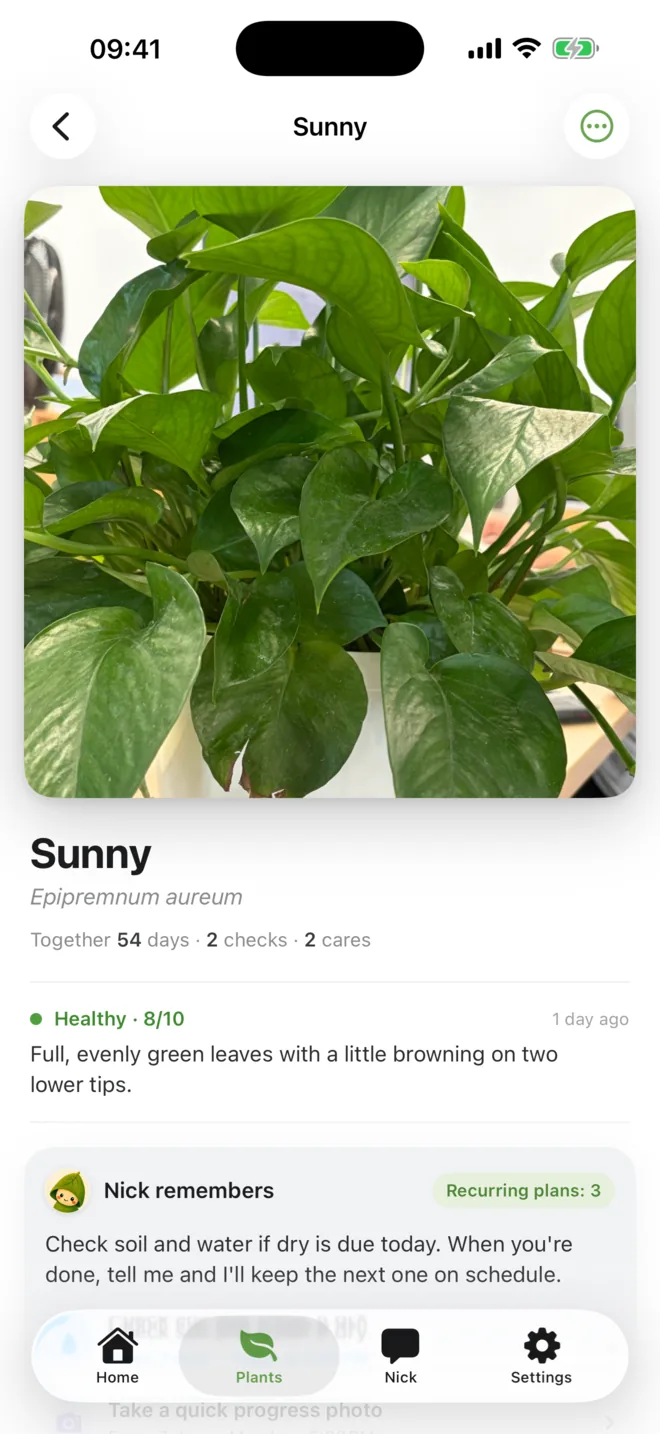
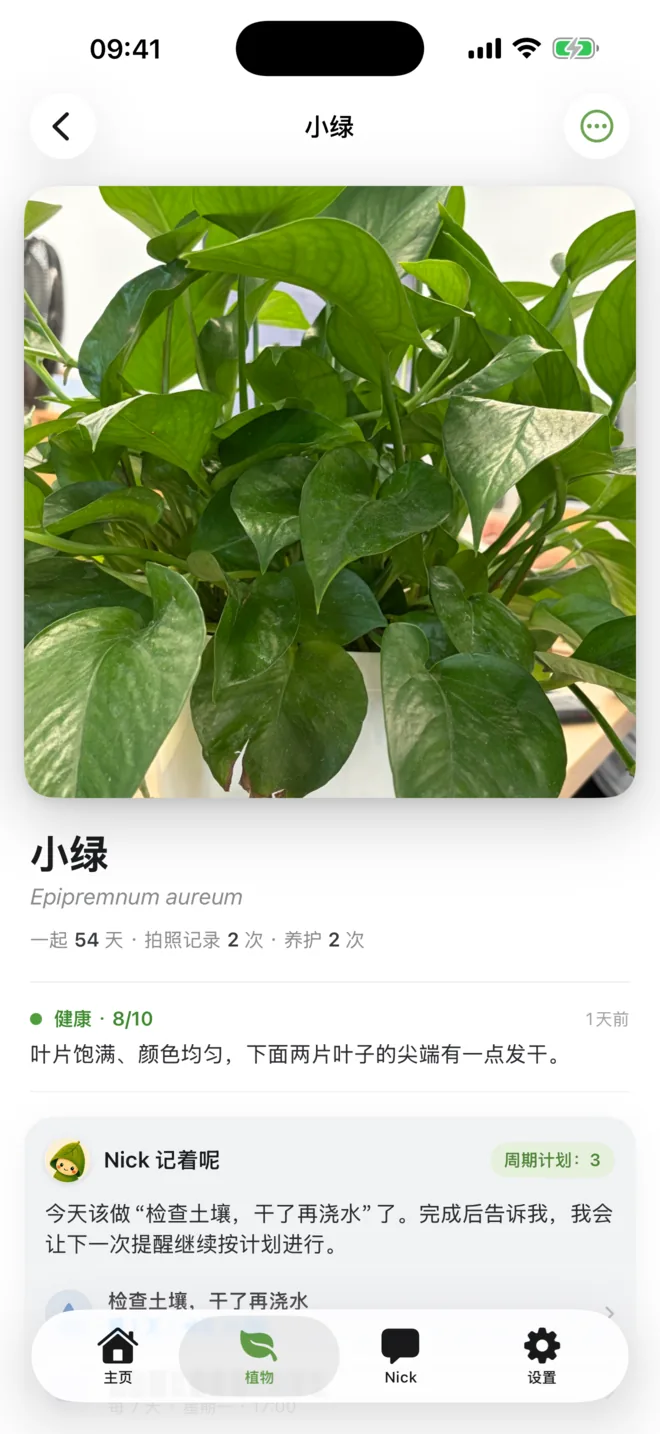
Photo check-in照片检查
How to check a plant’s health from a new photo
怎样用新照片检查植物状态
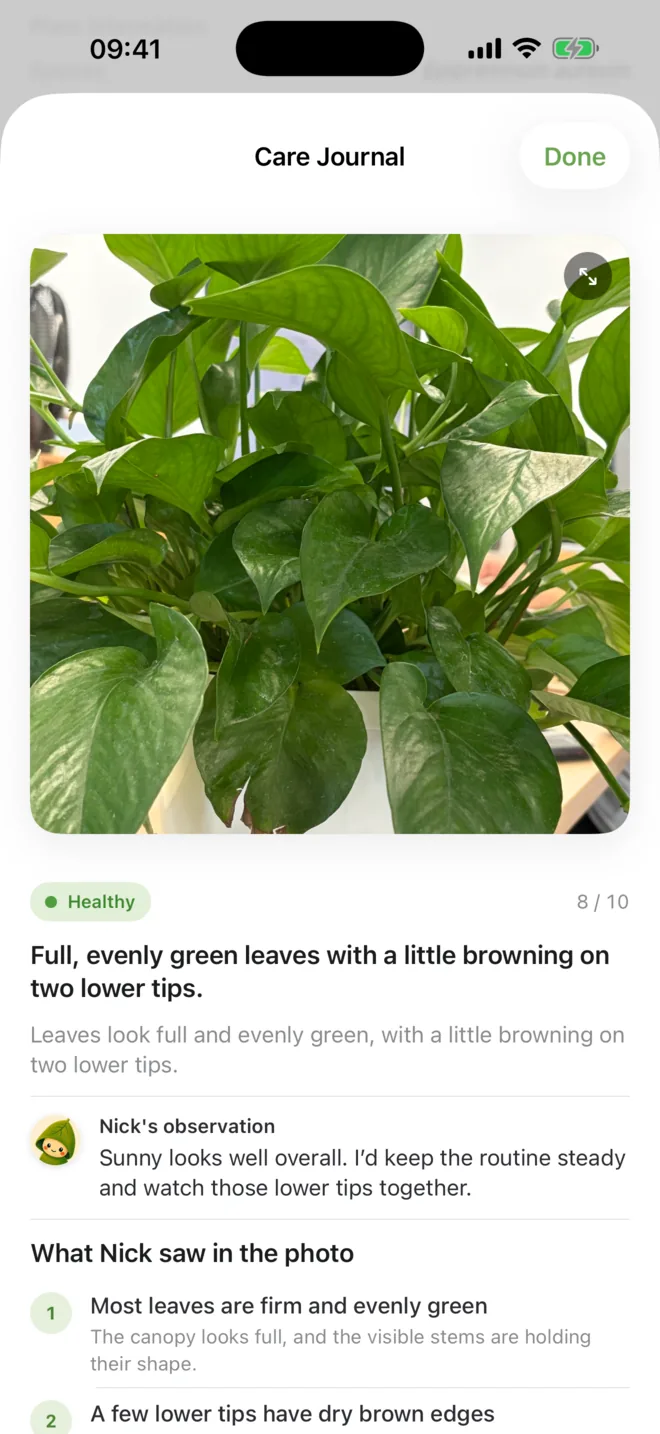
Use Home → Photo Check, or open a plant and start a check-in there. Choose a recent photo that represents the plant’s current condition.
How to read the report
- Health score and label
- A quick summary, not a medical diagnosis.
- Nick’s observation
- A short explanation of the overall condition.
- Visible clues
- Specific details seen in the photo, with confidence where available.
- Compared with last time
- Whether the visible condition looks better, stable, or worse.
Plant identification and health assessment can be wrong. Verify anything important, especially toxicity, pesticides, edible plants, or a rapidly worsening condition.
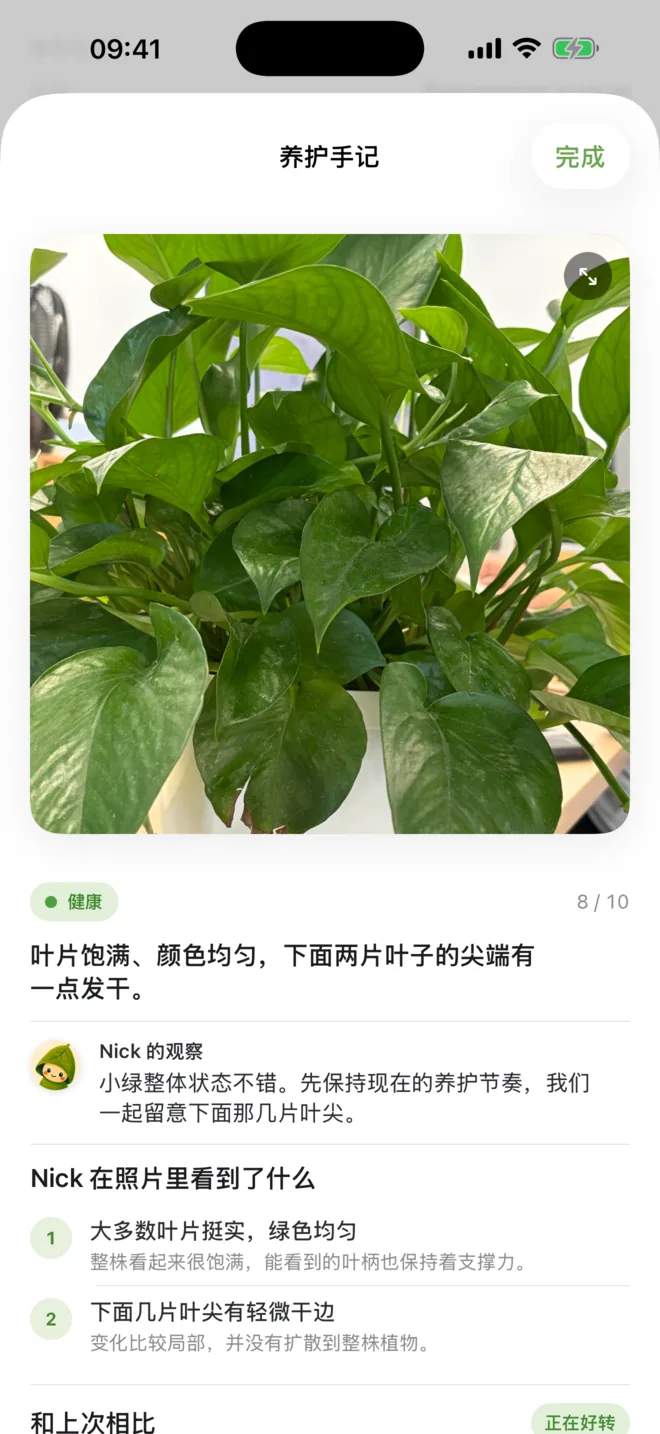
可以从 首页 → 拍照看状态 开始,也可以先打开某株植物,再发起检查。请选择一张能代表当前状态的近期照片。
怎样阅读报告
- 健康分数和状态
- 用来快速概括,不是专业诊断。
- Nick 的观察
- 用几句话说明整株植物目前的情况。
- 可见线索
- 列出照片中具体看到了什么,以及相应判断把握。
- 和上次相比
- 说明画面中的状态看起来是好转、稳定还是变差。
植物识别和健康判断可能出错。涉及毒性、农药、可食用植物或状态快速恶化时,请务必另行核实。
Nick chatNick 对话
Ask about this plant, not plants in general
围绕这株植物来问,会更具体
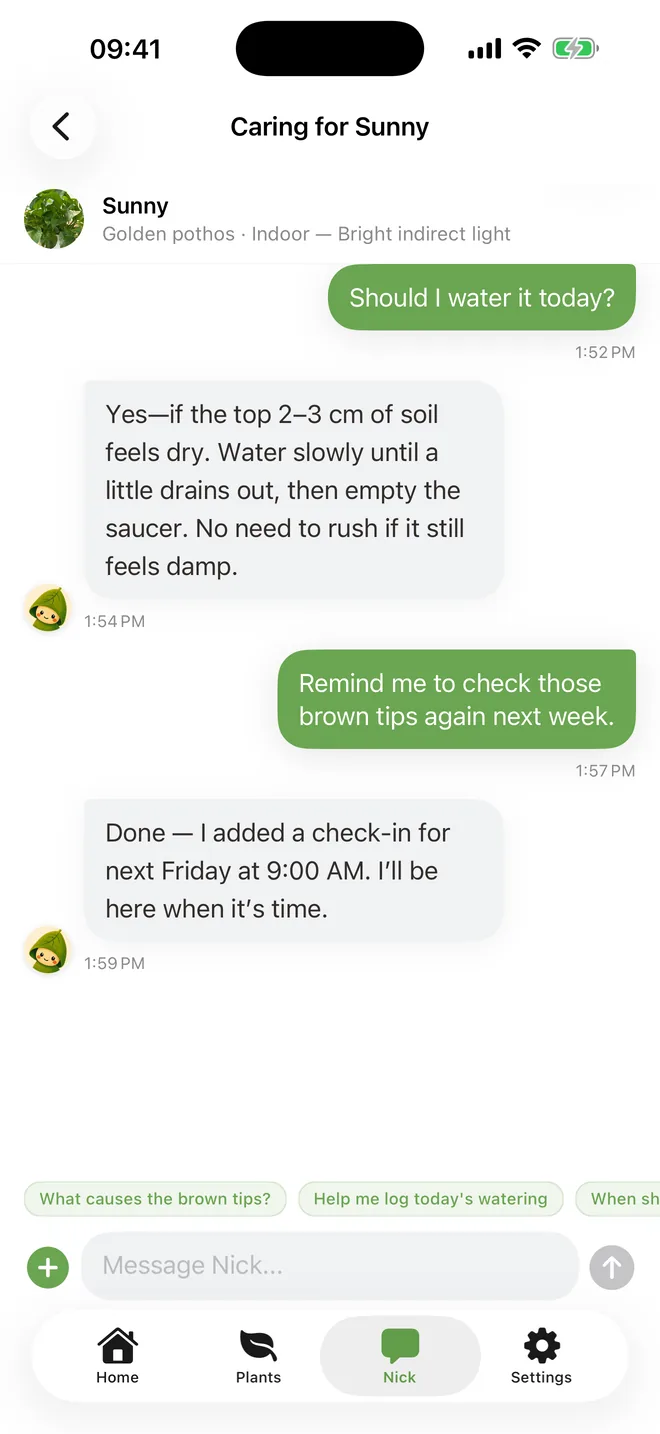
Open Nick and choose a plant conversation. Nick can use that plant’s species, placement, recent care, reminders, and check-in history when they are relevant to your question.
Questions that work well
- “I watered it four days ago. Should I water again today?”
- “The lower leaves are yellow. Has this happened before?”
- “Remind me to check these brown tips again next Friday.”
- “Record that I fertilized it today.”
When a request changes data or creates a reminder, Nick shows the proposed action for you to confirm. You stay in control of what is saved.
进入 Nick,选择与某株植物相关的对话。问题需要时,Nick 会参考这株植物的品种、摆放位置、近期养护、提醒和检查历史。
适合直接这样问
- “四天前刚浇过水,今天还需要浇吗?”
- “下面的叶子发黄了,以前出现过吗?”
- “提醒我下周五再看看这些发干的叶尖。”
- “记录一下,我今天刚施过肥。”
如果请求会修改记录或创建提醒,Nick 会先把准备执行的操作显示出来,由你确认后再保存。

Care plans养护计划
Keep care in the app; sync only when you want to
先在 App 里管理,需要时再同步
Nick saves care reminders in GardenerNick first. They appear in the Home calendar and the plant’s care briefing. Common reminders include watering checks, photo follow-ups, feeding, and custom care.
Create and complete care
- Ask Nick to create a reminder, then confirm the date and time shown.
- Open a date in the Home calendar to see what is due.
- Use the plant detail quick action, such as Watered, after you actually finish the care.
- Ask Nick to adjust an existing plan instead of creating a duplicate.
Apple Reminders is optional. GardenerNick asks for Reminders permission only when you choose to copy a care item there. Local notifications are also optional and can be changed in iOS Settings.
Nick 会先把养护提醒保存在 GardenerNick 里。它们会显示在首页日历和植物的养护简报中,常见类型包括浇水检查、拍照复查、施肥和自定义养护。
创建提醒与完成养护
- 让 Nick 创建提醒,并核对确认卡片里的日期和时间。
- 点开首页日历中的日期,查看当天要做的养护。
- 真正完成后,再在植物详情中点“已浇水”等快速操作。
- 已有相同计划时,可以让 Nick 调整,不必重复创建。
同步到 Apple“提醒事项”是可选的。只有你主动选择同步时,GardenerNick 才会申请“提醒事项”权限;本地通知也可随时在 iOS 设置中更改。
Growth record成长记录
Use the timeline to see what changed and when
用时间线查看什么时候发生了什么
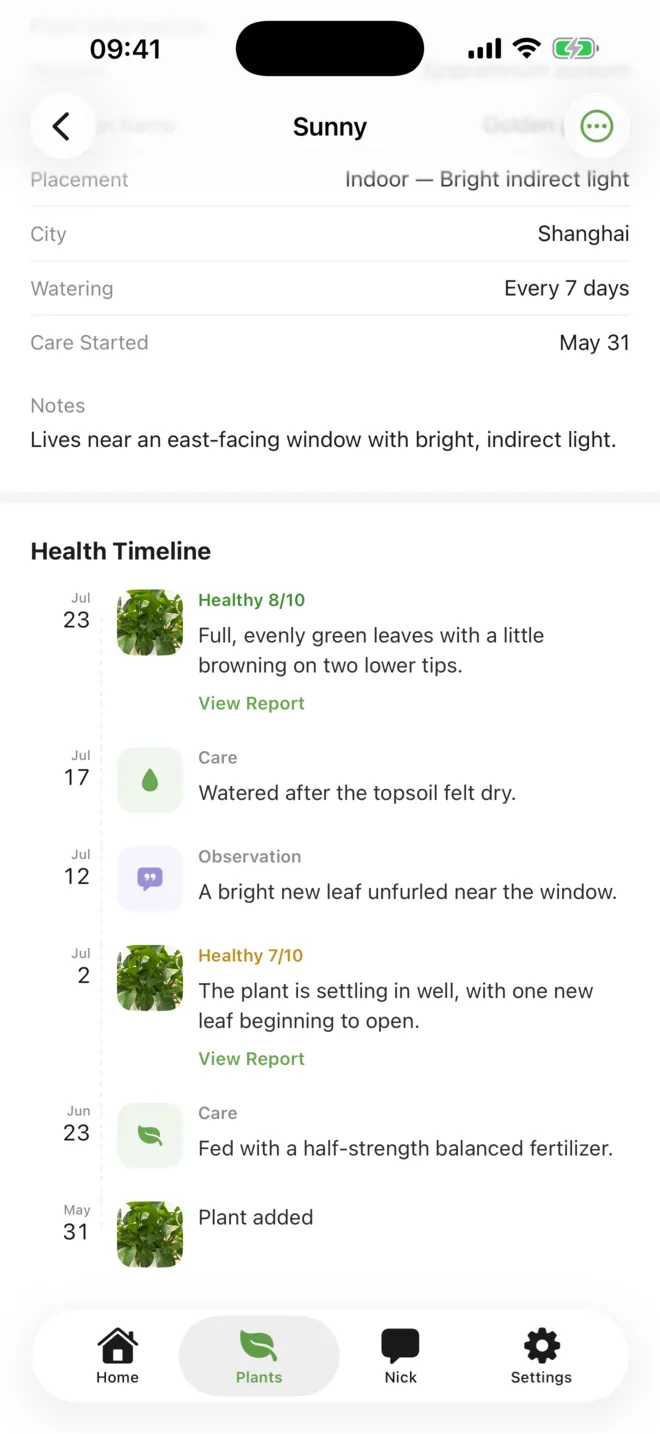
Open a plant and scroll to its timeline. Each item keeps its date, so you can relate a visible change to watering, feeding, a move, or an earlier health check.
- Tap a health entry to read the full report again.
- Use the photo count on the main plant image to open the photo timeline.
- Add photos from later check-ins to make visual comparison more useful.
- Care logs and milestones remain separate, so the history stays easy to scan.
A useful timeline does not need daily updates. Add a photo when the plant changes, after a concern, or every few weeks during active growth.
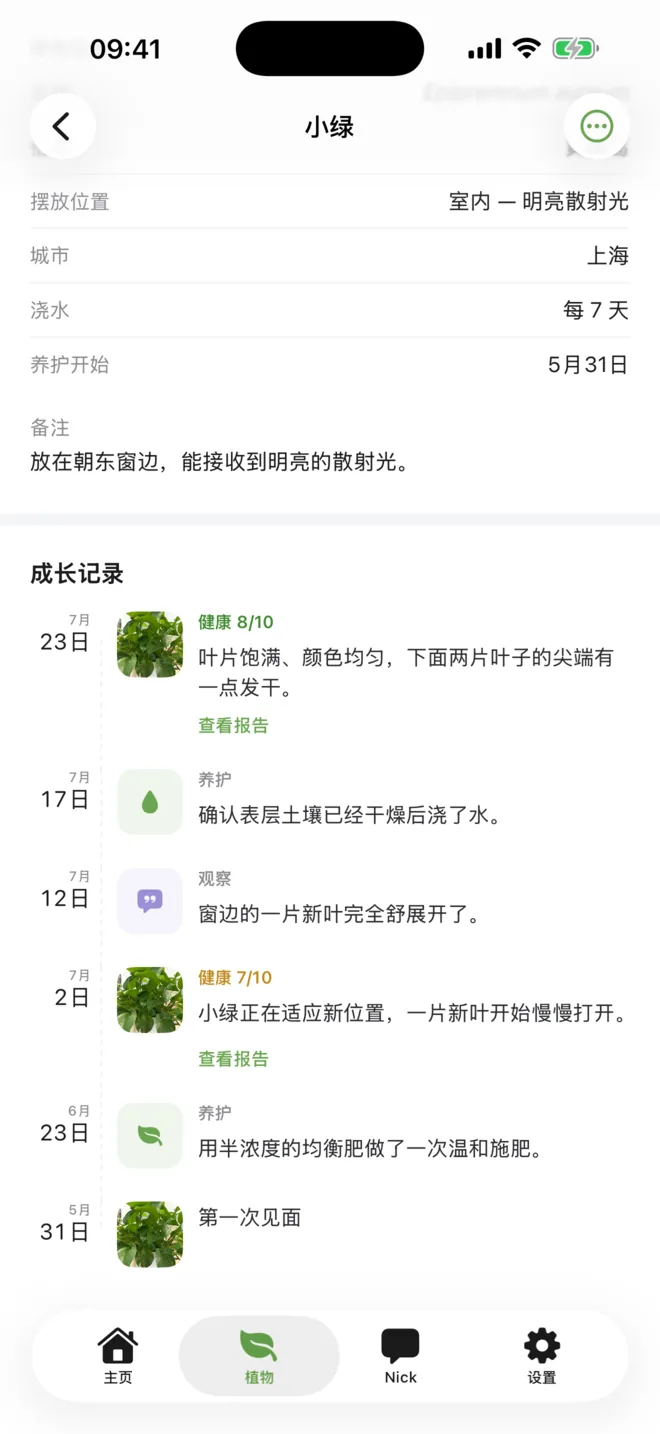
打开一株植物,向下滚动到时间线。每条记录都会保留日期,方便把叶片变化与浇水、施肥、换位置或之前的健康检查联系起来。
- 点开健康记录,可以重新阅读完整报告。
- 点主照片上的照片数量,可以打开照片时间线。
- 之后的检查继续添加照片,前后比较会更有参考价值。
- 养护记录和成长里程碑分开显示,浏览时更容易看清。
时间线不需要每天更新。植物有明显变化、问题需要复查,或生长旺盛时每隔几周拍一次就很有用。
iCloud backupiCloud 备份
Keep Nick’s plant journal ready to restore
把 Nick 的植物日记留好,需要时完整恢复
Open Settings → iCloud Backup. Sign in to iCloud, then turn on Automatic Backup. GardenerNick saves complete snapshots to your private iCloud database after changes; you can also use Back Up Now.
What a backup contains
Plant profiles and photos, health checks and timeline records, care reminders, and Nick conversations are kept together. Completed versions appear under Backup History, where you can inspect, restore, or delete an individual version.
Restore after reinstalling
- Start from onboarding or Settings.Tap Restore from iCloud during onboarding, or open Settings → iCloud Backup.
- Choose a completed backup.Open a version to review its date, plants, photos, and reminders.
- Confirm the full restore.GardenerNick downloads the snapshot and replaces the plants, photos, conversations, and reminders currently on this device.
Backup creation requires Pro, but restoring an existing backup does not. Backups are complete snapshots: they do not merge with current device data and they are not live multi-device sync.
进入 设置 → iCloud 备份。登录 iCloud 后开启自动备份,GardenerNick 会在内容变化后把完整快照保存到你的私有 iCloud 数据库;也可以点立即备份。
备份里包括什么
植物档案与照片、健康检查与时间线记录、养护提醒和 Nick 对话会一起保存。已完成的版本会出现在备份历史中,可以逐个查看、恢复或删除。
重新安装后恢复
- 从初次引导或设置开始。在初次引导中点从 iCloud 恢复,或进入 设置 → iCloud 备份。
- 选择一份已完成的备份。打开版本,核对日期、植物、照片和提醒等信息。
- 确认完整恢复。GardenerNick 会下载快照,并替换这台设备上现有的植物、照片、对话和提醒。
创建备份需要 Pro,但恢复已有备份不需要。每份备份都是完整快照:不会与设备现有数据合并,也不是多设备实时同步。
Before you rely on it使用前需要知道
Data, internet access, and Free limits
数据、联网与免费版限制
- Where data lives
- Your iPhone remains the live source for plant profiles, photos, notes, reminders, and history. Optional snapshots are stored in your private iCloud database when backup is enabled.
- When internet is needed
- Identification, health checks, Nick chat, and iCloud backup or restore need a connection. Saved plant records remain available offline.
- Free
- Up to 3 plants, 1 user-started health check per day, and 5 messages to Nick per day. The first check made while adding a plant does not use the daily health-check allowance.
- Pro
- Removes those plant, health-check, and Nick-message limits and lets you create automatic iCloud backups. Existing backups remain restorable if Pro expires.
Manage a subscription or restore purchases
Open Settings → Subscription. Use Manage Subscription to open Apple’s subscription settings, or Restore Purchases when Pro is missing after a reinstall. Restoring purchases is separate from restoring an iCloud backup.
- 数据保存位置
- 植物档案、照片、笔记、提醒和历史记录日常仍以这台 iPhone 为准;开启备份后,可选快照会存入你的私有 iCloud 数据库。
- 什么时候需要联网
- 植物识别、健康检查、Nick 对话以及 iCloud 备份或恢复需要网络;已保存的植物记录可以离线查看。
- 免费版
- 最多 3 株植物,每天 1 次由用户发起的健康检查,以及每天 5 条发给 Nick 的消息。添加植物时的第一次检查不占用当天次数。
- Pro
- 订阅有效期间,移除植物数量、健康检查和 Nick 消息次数限制,并可创建 iCloud 自动备份。Pro 到期后,已有备份仍可恢复。
管理订阅或恢复购买
进入 设置 → 订阅。“管理订阅”会打开 Apple 的订阅设置;重新安装后 Pro 没有显示时,可以使用“恢复购买”。恢复购买与恢复 iCloud 备份是两件不同的事。
Still stuck? The support page covers permissions, accuracy, subscriptions, backup and restore, and data deletion.
仍然遇到问题?支持页面还说明了权限、准确性、订阅、备份恢复和数据删除。
Open support 打开支持页面